
Appointments tab
A case's Appointments tab lists the case's appointments, and lets you add, change and delete them.
To see your own appointments across all your cases, use My Calendar. To see other employees' appointments, use the Scheduler. An appointment is the same record wherever it's created, so appointments added on this tab also appear in My Calendar and the Scheduler.
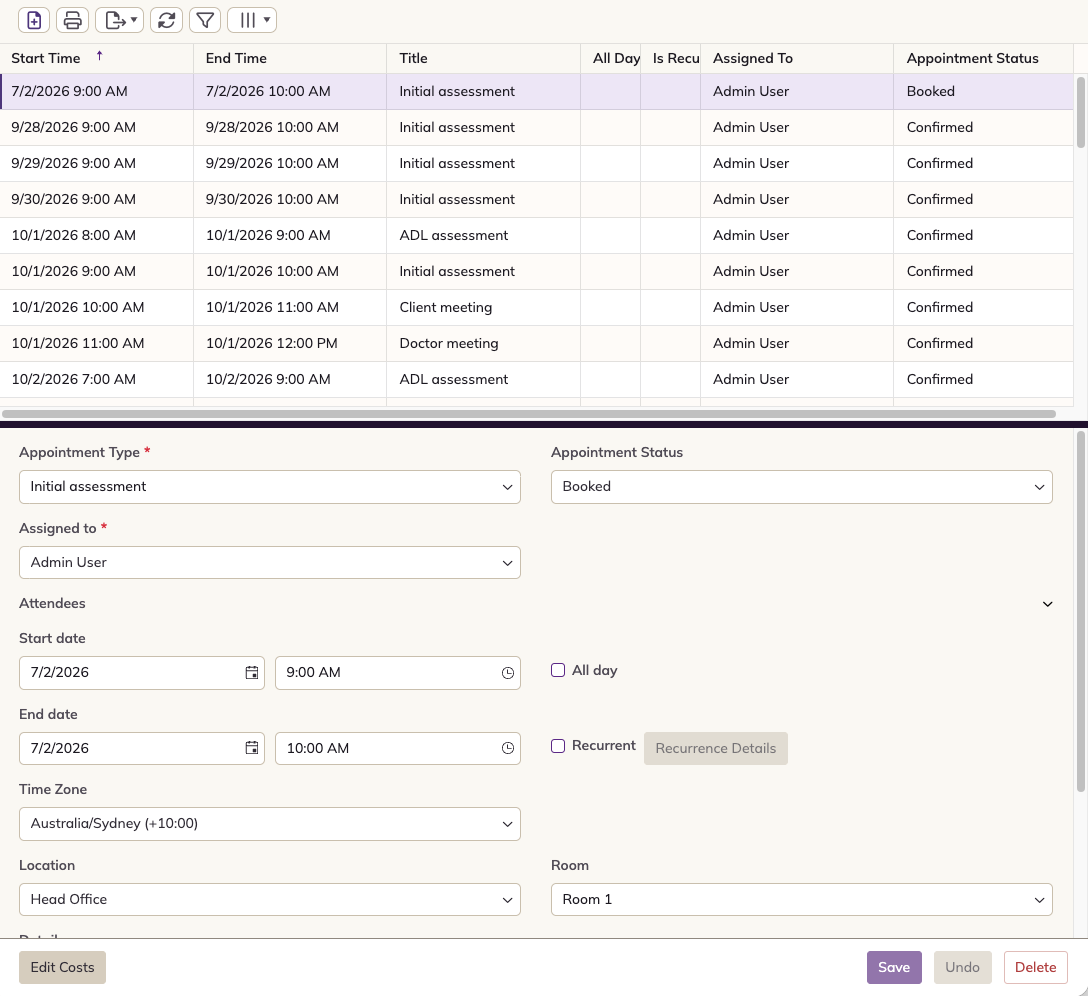
The list of appointments
The list shows each appointment's start and end time, title, whether it's all day or recurrent, who it's assigned to and its status. The title is the appointment's type, such as Initial assessment.
Use the toolbar above the list to add, print, export and refresh appointments, filter the list and choose which columns to show, see List tools.
Changing an appointment
- Select the appointment in the list. It opens in the panel below.
- Make your changes. The fields are the same as in the booking wizard, see Booking appointments in My Calendar.
- Click Save, or Undo to discard your changes.
Click Edit Costs to change the appointment's service and travel costs, or Delete to remove the appointment.
Adding an appointment
Click the new icon on the toolbar. The booking wizard opens with two steps: Configure Appointment → Add Costs. Because you're adding the appointment from the case, there's no Select Client step, and you choose the Assigned to employee in the Configure Appointment step.
For details of each step, see Booking appointments in My Calendar.