
Google travel time
Case Manager can calculate the driving time and distance to an appointment automatically, using the Google Maps Platform Routes API. Staff then see an auto-calculated duration when they add travel to an appointment, see Booking appointments in My Calendar.
To use this, your organisation needs its own Google Cloud account and API key. Chameleon Software doesn't provide one, and any Google charges are billed to your organisation.
This setup is optional. Without it, staff can still add travel time by choosing a preset duration.
Step 1. Create a Google API key
You do this in the Google Cloud console, with a Google account that can manage billing for your organisation.
- Sign in to the Google Cloud console. If your organisation doesn't have a Google Cloud account yet, click Sign up to Google Services on the Google Cloud Services settings page in Case Manager (see Step 2), which opens Google's sign-up page.
- Create a project for Case Manager, or select an existing one.
- Link the project to a billing account. Google requires billing for the Routes API.
- Enable the Routes API for the project.
- Open the Credentials page, click Create credentials and choose API key. Copy the key.
- Restrict the key so it can only be used for the Routes API: edit the key, and under API restrictions choose Restrict key and select Routes API.
Don't add a Websites (HTTP referrer) restriction to the key. Case Manager calls Google from its server, not from your web browser, so a website restriction would block it.
Google changes its console from time to time. For Google's current steps, see Set up the Routes API. For charges, see Google Maps Platform pricing.
Step 2. Enter the key in Case Manager
- Go to Tools → Integration Settings and select Google Cloud Services.
- Under Connection settings, click Enter API Key and paste in your key.
- Click Test Connection. Case Manager asks Google for a sample route. When it works, the status shows "Google Cloud Service is connected".
- Click Save.
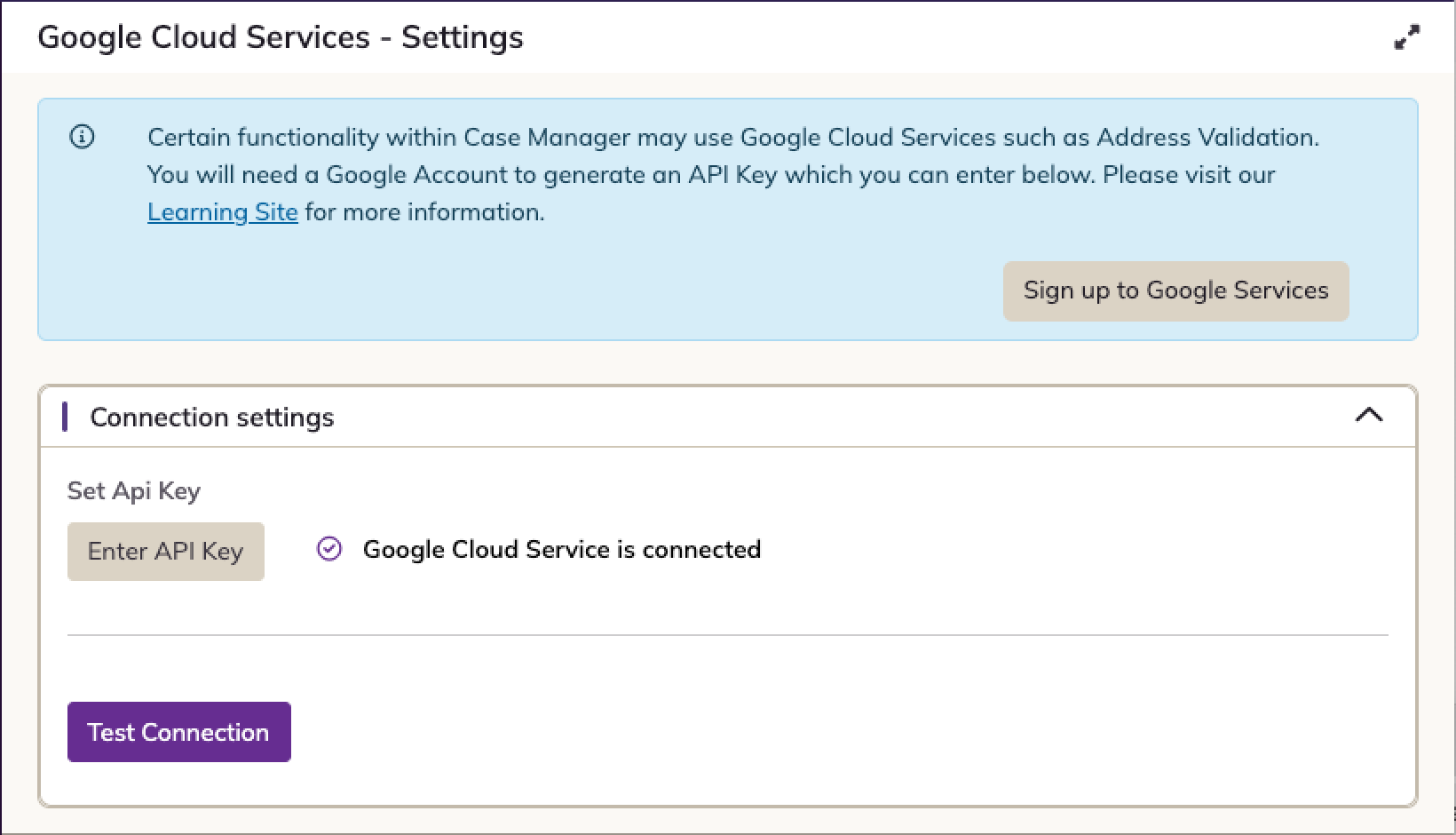
If the test fails, check that the Routes API is enabled for the project, that billing is set up, and that the key isn't restricted to other APIs or to websites.
How the key is used
Case Manager uses the key only to calculate travel time and distance. Each time it calculates travel for an appointment, it sends a route request to Google, from the starting location to the appointment's location. Google counts each request, including the one sent by Test Connection, towards your organisation's usage.