Microsoft 365 calendar sync
Case Manager can copy appointments to each employee's Outlook calendar in Microsoft 365. When you create, reschedule or cancel an appointment in Case Manager, the change is copied to the assigned employee's Outlook calendar, and attendees are sent meeting invitations.
Sync works one way only: changes made in Outlook aren't copied back to Case Manager.
What's needed for sync to work
Sync, including attendee invitations, works only when all three of these are in place:
- Calendar sync is turned on for your organisation (see the steps below).
- Your organisation uses its own Microsoft app registration.
- The employee the appointment is assigned to has Sync my Case Manager calendar to my Office 365 Outlook calendar ticked on the Calendar tab of their employee record.
The third point is about the assigned employee. If they don't have sync ticked, the appointment isn't copied to Outlook and attendees aren't invited, even if the person who made the booking has sync turned on.
Once sync is turned on for the organisation, the employee setting is ticked by default. If sync is off for the organisation, the employee setting is greyed out. See Employee availability and colour.
Before you start
Calendar sync requires your organisation's own Microsoft app registration. To request the app registration setup sheet, contact the Customer Success Team at support@casemanager.biz.
The setup must be done by someone with the Global Administrator or Privileged Role Administrator role in Microsoft Entra, because only these roles can approve the permissions Case Manager needs.
Turning on calendar sync for your organisation
- Go to Tools → Options and open the Security tab.
- Under Authentication Services, tick Use Microsoft sign-in and Use my company's Azure app, then click Setup and enter your app registration details. For more about Microsoft sign-in, see Set up for Microsoft, MFA and Case Manager.
- Under Scopes and Permissions, tick Enable Office365 calendar sync.
- Click Verify permissions next to it, and sign in as your Microsoft 365 administrator to approve the calendar permission.
- Save your changes.
Important: after the app registration is saved, the Case Manager application must be restarted before you click Verify permissions.
- SaaS customers should contact the Customer Success Team to do this.
- Customers who host Case Manager on their own server should recycle the Case Manager application pool on the web server.
If the permissions aren't approved, calendar sync won't work for your users.
Meeting invitations
When sync is set up, each attendee with a valid email address receives a meeting invitation from Microsoft Exchange, which they can accept into their own calendar.
The invitation's subject is Case [number] – [client name]. It includes the appointment details, type, contacts, staff, a link to the case, who created it and its status.
Because the client's name is included, check that it's appropriate to share it with every attendee you add. The client isn't added as an attendee automatically. Add them only if you want them to receive an invitation.
If sync isn't set up, attendees are recorded on the appointment but no invitation is sent.
Checking that an appointment has synced
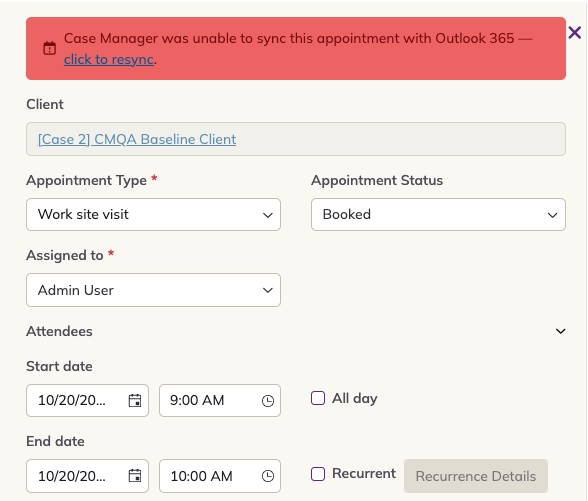
An icon on each appointment shows whether it has been copied to Outlook. If sync fails, the appointment shows the message "Case Manager was unable to sync this appointment with Outlook 365". Click click to resync in the message to try again.