
Digital Signatures
Summary
This document provides an overview of the Digital Signatures feature introduced in Case Manager version 7.0 and above across both the Web and Windows platforms. It outlines the purpose, functionality, and benefits of this enhancement. It also includes setup guidance and highlights key steps for using and managing digital signatures within Case Manager.
Background
Digital Signatures enable Case Manager users to securely send documents for signing from directly within the system. This eliminates the need for external platforms or manual processes thus providing a seamless signing experience that simplifies workflows for providers and participants alike. It is fully embedded into both the Web and Windows versions of Case Manager, offering flexibility for users regardless of platform.
What Does It Do?
-
Allows users to send documents directly from a case for digital signing.
-
Supports multiple signatories with customisable signing order.
-
Automatically saves signed PDFs back into the case documentation tab.
-
Enables email notifications to track signature completion.
-
Includes branding options using your organisation’s details and logo on envelopes and certificates.
Key Benefits
-
Simplifies document signing workflows within Case Manager.
-
Reduces turnaround time on approvals and consents.
-
Minimises paperwork and manual tracking.
-
Delivers a professional and branded experience for clients and stakeholders.
Requirements
-
Case Manager version 7.0 or higher.
-
The feature must be enabled via request through the Sales team.
Digital Signatures Configuration
The Digital Signatures feature requires activation by our Sales team and is not enabled by default. Please contact the Sales team (sales@casemanager.biz or +61 2 6651 3238) to enable the feature for you.
Once enabled, users must have the appropriate permissions to configure branding, templates, and document workflows.
Permissions
Administrators can control which users have access to the Digital Signatures feature using a dedicated security permission.
Can Send Digital Signatures
A new permission called Can send Digital Signatures is available under the System Configuration group in Security Permissions. This permission controls the visibility of the Digital Signatures icon in the toolbar.
Default Settings:
-
Enabled for System Administrators and Managers
-
Disabled for Consultants
To configure this permission, navigate to Tools > Security Permissions and locate the System Configuration group. Enable or disable the permission for each user role as required.
Configure Digital Signatures
Please access the web version of Case Manager to fulfil the steps below:
-
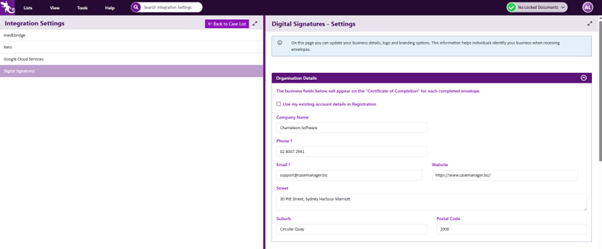
Navigate to Tools > Integrations > Digital Signatures
-
Input your business details under Organisation Details.
-
These will appear on the “Certificate of Completion” for signed documents.
Note: If this feature has not been configured by our Sales team, a popup message will appear indicating that access is not yet enabled. Please contact the Sales team to activate this feature before proceeding.
Branding Configuration
-
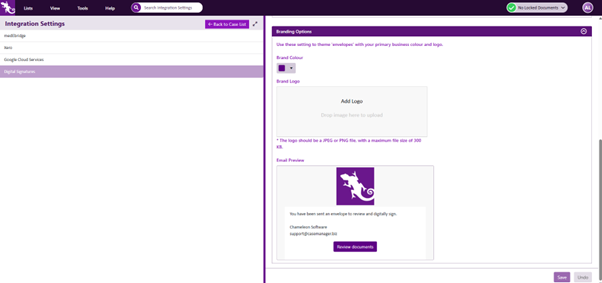
Drag n drop an image file of your Brand Logo and select a Brand Colour.
-
A live Email Preview is displayed to show how the recipient will view the envelope.
-
Click Save once branding details are complete.
Creating Digital Signature Document Templates
Please see the section below for instructions on setting up document templates to be used for digital signatures.
Creating Digital Signatures Templates
-
Go to Lists > Document Templates
-
Add a new blank Word document
-
Enter document details
-
Check the box: Applies to Digital Signatures
-
Save document details
-
Open the Word document in Microsoft Word
-
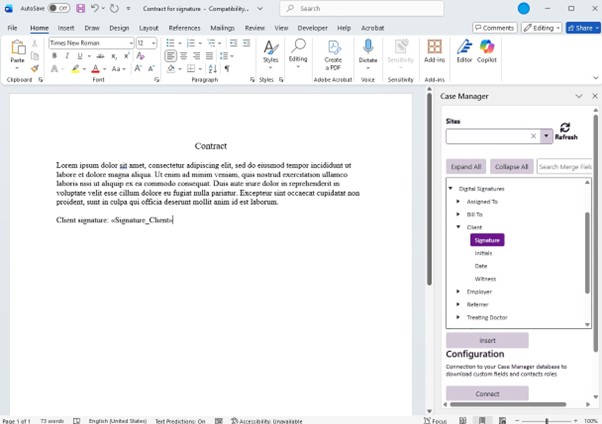
Use the Case Manager Office Add-in to insert digital signature merge fields into Word templates.
-
Please note for every contact role merge field that is added into the document, the more recipients will be required to view and sign the document.
-
Save, close, and activate the template.
Using the Digital Signatures Feature
There are two workflows for sending documents with digital signatures. You can either create a Digital Envelope directly from a template, or attach an existing case document to a new Digital Envelope. Both workflows are described below.
Workflow 1: Sending a Digital Signature Envelope
-
Navigate to a Case.
-
Go to the Documentation tab.
-
Click the Digital Signature icon.
-
Choose from available templates flagged for digital signature.
-
Click Ok.
-
If the contacts listed within the digital signature document are missing details such as full name or email, please first return to the Case Manager contacts tab and ensure those details are stored in Case Manager.
-
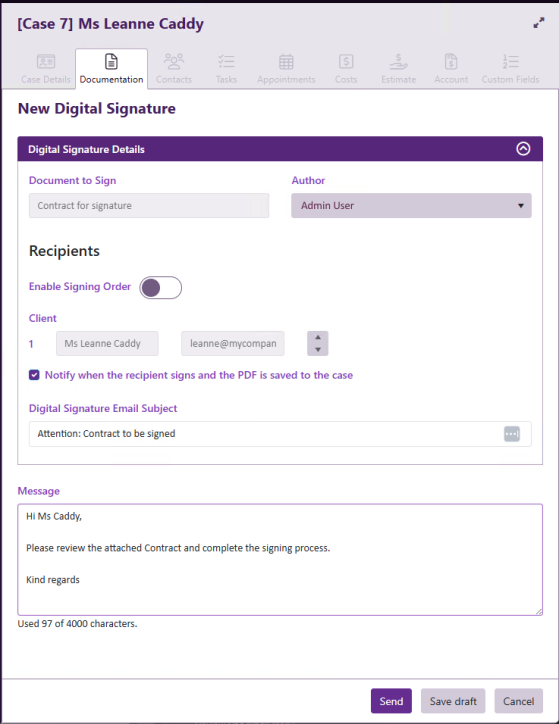
Enter email subject and message
-
To finalise you may either:
-
Send immediately by completing recipient fields and clicking Send
-
Save as Draft. If you choose this option please navigate back to the Documentation tab later and click the Open Digital Signature button to re edit details and send when ready.
-
-
The document will be sent as an envelope.
Workflow 2: Sending an Existing Case Document as a Digital Envelope
This workflow allows you to add a document template configured for digital signatures as a standard case document, edit and save the Word file, and then create a Digital Envelope using the edited document when you are ready to send it for signing.
-
Create a document template with both Case Manager merge fields and Digital Signature merge fields (see Creating Digital Signature Document Templates above).
-
Navigate to a Case and go to the Documentation tab.
-
Add the template as a standard case document. The Case Manager merge fields will be populated automatically. The digital signature merge fields will remain unchanged at this stage.
-
Open the Word document in Microsoft Word, make any required edits, then save and close the document.
-
When you are ready to send the document for signing, click the Digital Signature icon in the Documentation tab.
-
In the template window, select the Existing Case Document tab. This displays a filtered list of Word documents (.docx, .doc) from the current case’s Documentation tab.
-
Select the document you wish to send and click Add Document.
-
Case Manager will validate the digital signature merge fields in the document. If all recipients have a valid email address, you can proceed.
-
If the original template was configured with the “Applies to Digital Signatures” setting, the email subject and message will be pre-populated from the template. Otherwise, these fields will be blank and you will need to enter them manually.
-
Complete the recipient fields and click Send, or Save as Draft to send later.
Note: If the selected document is currently locked by another user (i.e. being edited), a message will appear advising that the document cannot be attached to a Digital Signature Envelope until it is unlocked.
Tracking the Progress of Your Digital Signature Envelope (web only)
-
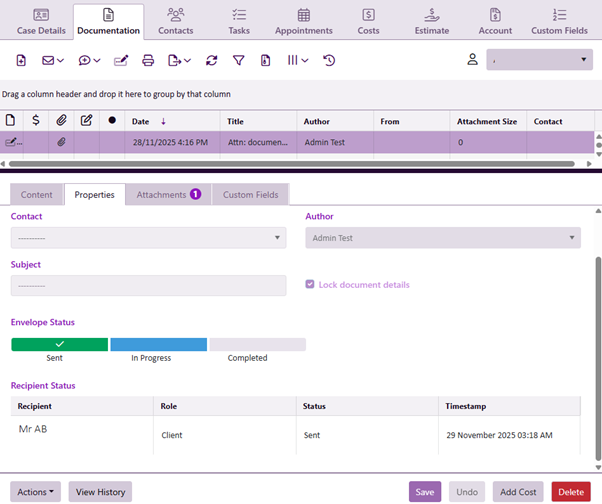
After the envelope is sent, go to the Properties tab of the signed document in the Documentation tab. Here, you can:
-
Monitor the Envelope Status (Sent, In Progress, Completed, Cancelled etc.)
-
View detailed Recipient Status, including name, email, role, and timestamp of completion
This ensures full visibility of signing progress without needing to leave Case Manager.
Confirm Completion and Retrieve Final Signed Copy
-
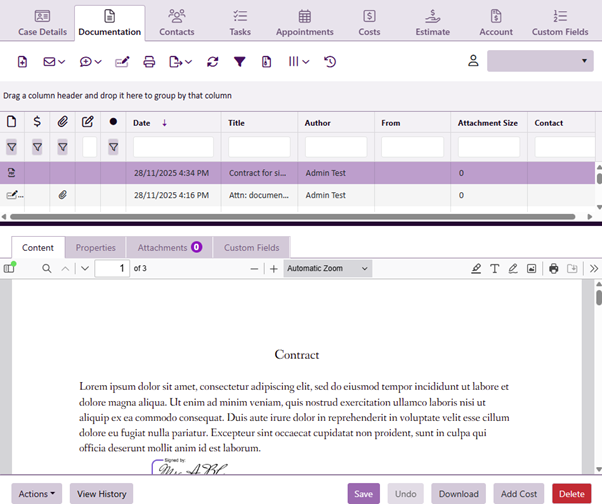
Once the recipient/s complete the signature process, you will receive a confirmation email from Annature with a link to download the signed document.
-
At the same time, the signed PDF is automatically saved and attached to the case’s Documentation tab in Case Manager, ensuring a complete audit trail and easy access for future reference.
Additional Information
● This feature is only available for Versions 7.0 or higher.
● This feature is not enabled by default—please contact our Sales team to request access.
● Supported in both Windows and Web versions of Case Manager.